
Discover a better way to browse the library with our upgraded catalog!
Our upgraded catalog, Discover, is now live! It features enhancements and a new kid’s catalog! This upgrade is your new, easier way to discover everything the library has to offer — all in one place. Expand the categories below to learn more about Discover.
What is Discover?
Discover is the Tulsa City-County Library’s catalog and discovery platform, a tool used on our website to search for your favorite books, digital materials and more. Upgrades to our platform allow you a more intuitive search experience, simplified account management and seamless access with the tools you use the most.
With Discover, you can:
- Search across books, e-books, audiobooks and more
- Manage family accounts in one place
- Save lists and easily track, search and sort your reading history
- Explore personalized recommendations
What’s New?
Upgrades to our platform include new features to the catalog, such as:
- All-in-one experience – Access physical materials, e-books, audiobooks and more in one place.
- Reading history – Easily track, search and sort what you have read.
- Kid’s Catalog – Browse a cool space designed just for young readers.
- Improved search – Find what you need faster.
- Saved lists and searches – Keep track of what you love; build your own book shelves and showcases.
- Family account options – Manage linked family member’s accounts in one platform.
- Updated mobile app – Browse the catalog, manage your account, add your library card to your mobile wallet, and more while on the go.
- Separate catalog and website search – Easily search the Discover catalog for materials or search the Tulsa Library website for programs, services, and locations.
EXPLORE DISCOVER: Account Portal (Video)
EXPLORE DISCOVER: Searching the Catalog (Video)
EXPLORE DISCOVER: The Mobile Experience
Customers who want to access Book Lists and manage family accounts will prefer using the mobile browser and desktop versions of Discover.
Adding Discover To Your Mobile Device
To add the Discover mobile browser shortcut on an Apple device:
Click here to watch a YouTube tutorial of creating a browser shortcut on an Apple device.
- Open Safari and go to: https://catalog.tulsalibrary.org
- Tap the Share button
- Scroll down and tap Add to Home Screen
- Tap Add in the top-right corner
To add the Discover mobile browser shortcut on an Android device:
Click here to watch a YouTube tutorial of creating a browser shortcut on an Android device.
- Open your browser and go to: https://catalog.tulsalibrary.org
- Tap the three vertical dots in the top-right corner
- Tap Add to Home Screen
Following these steps, the Discover catalog will now appear as an app on your home screen.
Adding Your Library Card To Your Mobile Wallet
Click here to watch a YouTube tutorial of adding your library card to Apple wallet on an Apple device.
Click here to watch a YouTube tutorial of adding your library card to Google wallet on an Android device.
Using the Discover Mobile App
The Discover mobile app offers many great features, but there are a few limitations to be aware of. Please note:
- The app does not currently support Book Lists or family account management. Updates expected this winter will add support for Book Lists.
- For privacy reasons, login is required to search.
- Libby content may still appear as OverDrive within the app.
- The app does not currently sync to desktop.
Issues You May Encounter During This Transition
The following are known issues within Discover that customers may encounter during the transition period. We are actively working to resolve or improve these experiences.
- Load Times – Customers may notice occasional slowness when using Discover, especially when loading additional details such as author information. Performance may vary as the platform continues to stabilize. If a page is slow to load, try waiting a moment for it to fully load.
- Address Display – Some customers may notice their address displays incorrectly within the account portal. This display issue does not impact customer accounts or library services, and customers cannot edit their address themselves.
- Lists – Shelves and lists (now known as Book Lists) may take some time to fully appear. Some users may experience items missing from their list when using a desktop, until the issue is fixed. Book Lists are not currently available in the mobile app but are expected to become available this winter.
Frequently Asked Questions
- The catalog looks very similar. How do I navigate it?
Discover’s core features will feel familiar to many customers, but navigation has been simplified. The Account Portal replaces My Bookshelf and brings everything—holds, reading history, shelves and lists (now known as Book Lists), and more—into one place with easier navigation.
- Will there be downtime during the transition to Discover?
Customers will continue to have access to the catalog during the transition to Discover.
From May 11-15, some features, such as shelves and lists (now known as Book Lists), may take a few days to fully appear. Customers will start seeing their lists load as early as Wednesday, May 13. Some users may experience missing items on the Desktop or missing lists on the mobile app, until these issues are fixed.
- How do customers access the Account Portal?
First time users can access their account by clicking MY TCCL at the top of the page, which opens the new Account Portal. Customers will utilize their library card number and password to log in.
- Where are the Lists and Shelves?
Lists and shelves have become Book Lists, making them easier to access in one place.
Customers can view and manage Book Lists through the Bookmarks page in the Account Portal. When browsing the catalog, click on the Bookmark icon to add items to Book Lists.
- Where can customers find their reading history?
Reading history is available on the Checkout & Requests page in the Account Portal. During the transition week, existing reading history will transfer to Discover for customers who previously enabled borrowing history.
If customers did not have reading history enabled previously, they can enable reading history now. Once enabled, reading history will begin tracking items checked out from that point forward.
- Where can customers browse, sort, and track their books?
Customers can manage Book Lists, bookmarked items, saved searches, and reading history within the Account Portal.
From there, customers can:
- Create, organize, and share their Book Lists
- Search and sort their reading history
- Save searches for later
- Remove items they no longer want saved
Why do I have two holds on the same item after placing a hold in the Discover app?
We are aware of an issue affecting some customers using the Discover app. In certain cases, placing a hold may unintentionally create two holds on the same item. If this happens, please contact library staff or our AskUs team for assistance. We can help remove the duplicate hold while we work with our vendor to resolve the issue.
- How do parents switch between the Kid’s Catalog and an adult view?
Within the Kids Catalog, customers can switch between children’s and adult views using the toggle in the upper-left corner of the screen.
- Why are search results taking a long time to load?
Customers may notice occasional slowness when using Discover, especially when loading additional details such as author information. Performance may vary as the platform continues to stabilize. If a page is slow to load, try waiting a moment for it to fully load.
- Why are there two search bars in the Discover catalog?
Discover includes two search experiences to help customers easily find what they need.
One search bar is designed for searching the library catalog for books, eBooks, audiobooks, and other materials. The other helps customers search the TCCL website for programs, events, services, locations, and additional library information.
When searching the Discover catalog, start your search here:
On Mobile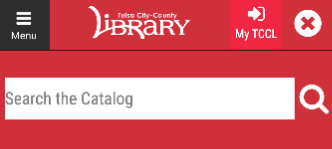
On Tablets/iPads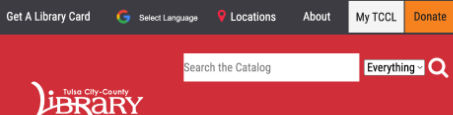
On a Desktop Computer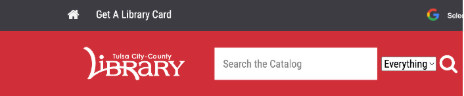
- Which version of Discover should I use: desktop, mobile browser, or the app?
Customers can access Discover through a desktop browser, mobile browser or the Discover mobile app. All three options provide access to the catalog and account features, but there are a few differences customers should know:
- Customers who want their Book Lists and linked accounts to sync across devices may prefer using the desktop or mobile browser version of Discover. Many customers enjoy using the mobile browser version of Discover because it offers a desktop-like experience on a phone while keeping information synced across devices.
- The Discover mobile app does not currently support Book Lists or family account management. Updates expected this winter will add support for Book Lists.
- For privacy reasons, customers must log in before searching within the app.
To add the Discover mobile browser shortcut to an Apple device:
- Open Safari and go to: https://catalog.tulsalibrary.org
- Tap the Share button
- Scroll down and tap Add to Home Screen
- Tap Add in the top-right corner
To add the Discover mobile browser shortcut to an Android device:
- Open your browser and go to: https://catalog.tulsalibrary.org
- Tap the three vertical dots in the top-right corner
- Tap Add to Home Screen
Following these steps, the Discover catalog will now appear as an app on your home screen.
- How do I return a Libby eBook early?
Libby items cannot be returned early through the Discover catalog or mobile app. If you borrowed a Kindle eBook through Libby, the item will automatically expire at the end of the lending period. If you would like to return it before its due date, you can return it through Amazon following the instructions below.
- In Libby, go to your Shelf.
- Select Manage Loan > Return Early > Return with Kindle.
- On Amazon's "Your Books" page, find the title you want to return. You may need to search for it.
- Tap the cover image for the title, then tap the More Options button.
- Tap Return Borrowed Book and confirm.
- In Libby, select Yes, I've Returned It to hide the title from your Shelf.